
Prerequisites:
- An AWS account
- Basic knowledge of AWS services
- A provisioned Windows EC2 instance
https://youtu.be/MCk5oK5HU3g?si=NiptOkTng9N3ngr4
Step-by-Step Guide:
Step 1: Launching a Windows EC2 Instance
- Click the “Launch Instance” button.
- Select a “Windows Server” AMI based on your requirements.
- In the instance type, set as “t2.micro” as a free tier eligible.
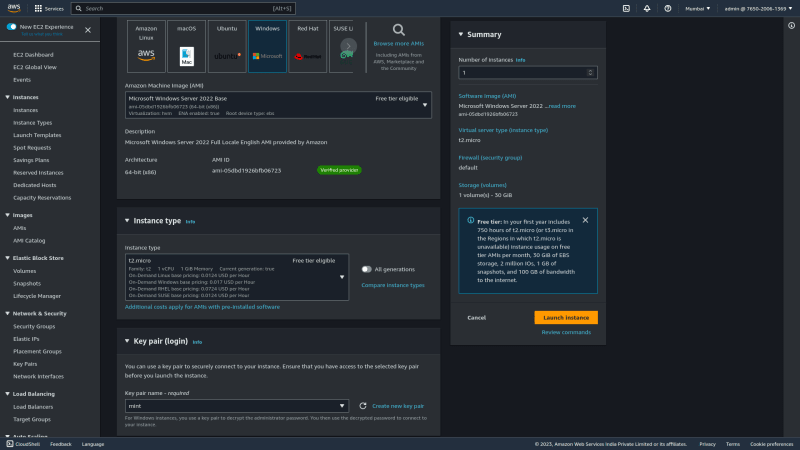
Step 2: Choose an existing key pair or create a new key pair.
- If you already have an EC2 “key pair“, select it.
- If not, create a “new key pair“. You’ll use this key pair to securely connect to
your Windows EC2 instance. - “Save the file” on your local device. Make sure it is safe.
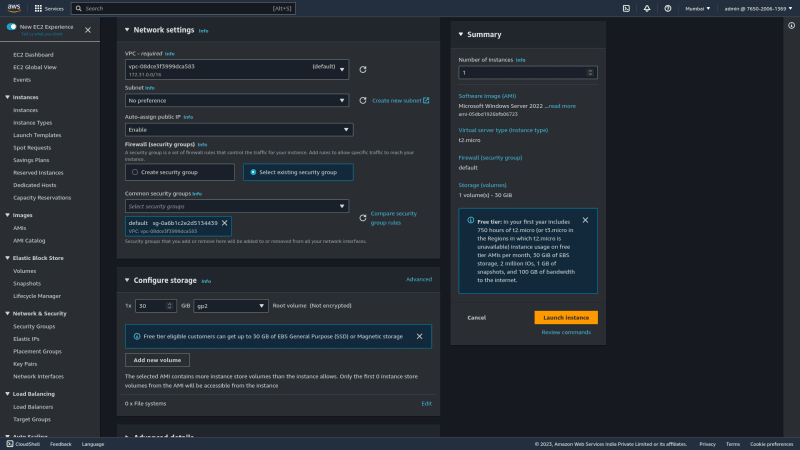
Step 3: Configure the Security Group and Virtual Private Cloud (VPC):
- Automatically “assigned public IP” should be “enabled”.
- Create a “new security group” or select an “existing one”.
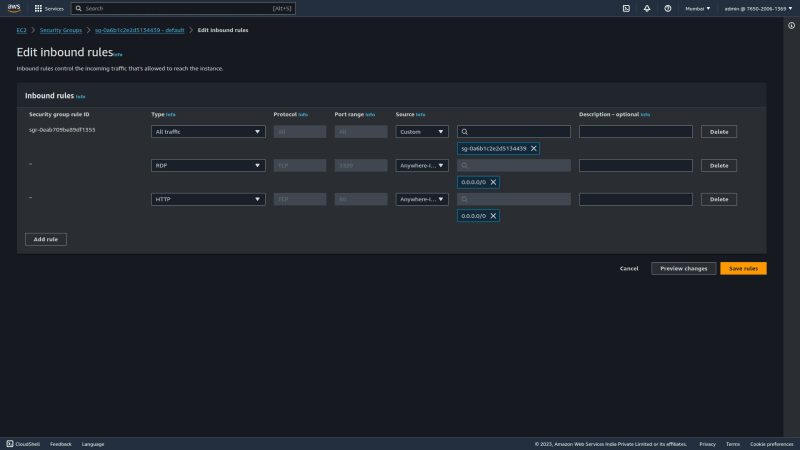
- Define rules to allow HTTP (port 80), RDP (port 3389), and HTTPS (port 443)
traffic for a web server. - Click “Launch” to proceed.
Step 4: Connect your EC2 instance
- In the RDP Client Tab, click on “Download Remote Desktop File” on your local machine.
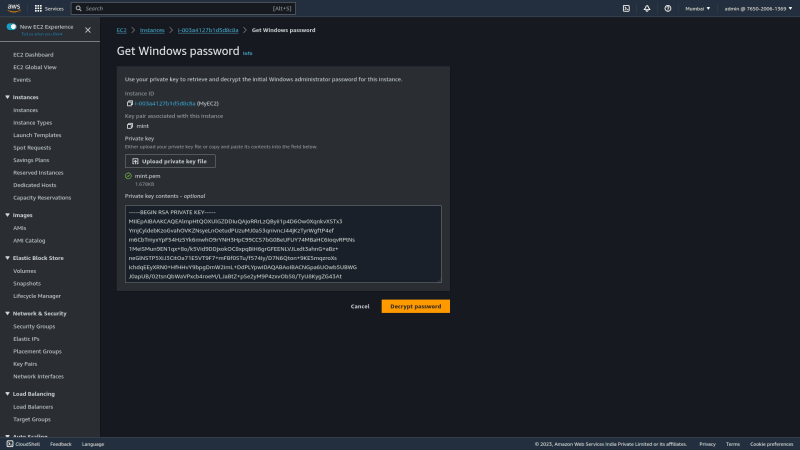
- Click on “Get Password” and “Upload the Private Key“.
- Click on “Decrypt Password“, then copy your decrypted password.
- Open the RDP file and “paste” your copied decrypted password.
- You are successfully connected to your Windows EC2 instance.
Step 5: Windows Instance
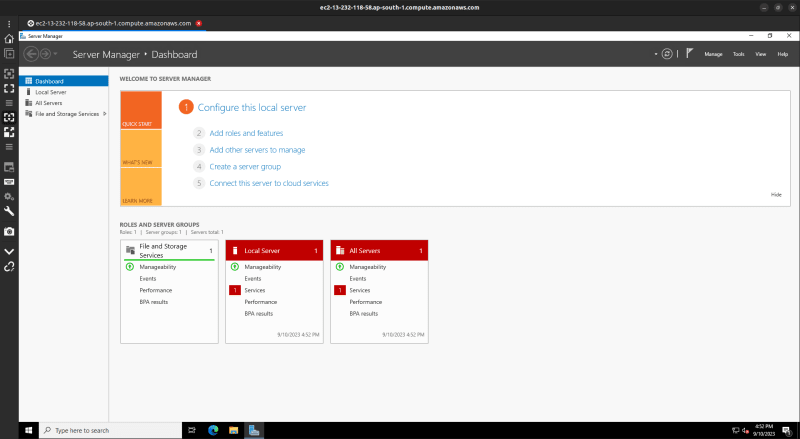
- Navigate to the search bar for “Server Manager” and double-click to open.
- On the dashboard, on the left panel, click on “Add Roles and Features.”
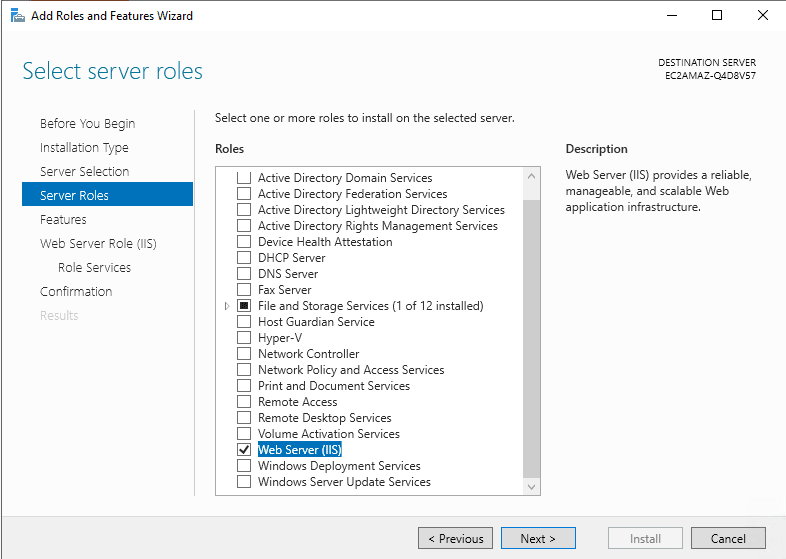
- Click on “next” following Server Roles.
- Click on the “web server (IIS)” and click on “Add feature.”
- Finally, click on “Install.”
Step 6: Make a webpage file
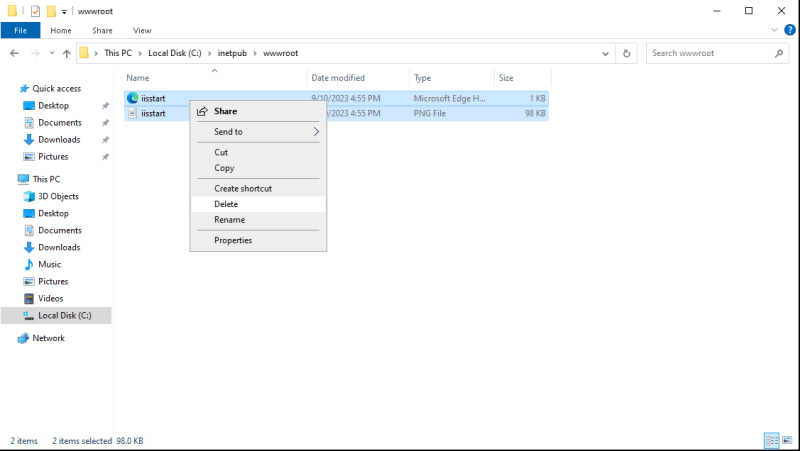
- Navigate to “Local Drive (C:)” –> “inetpub” –> “wwwroot”. Delete all the files.
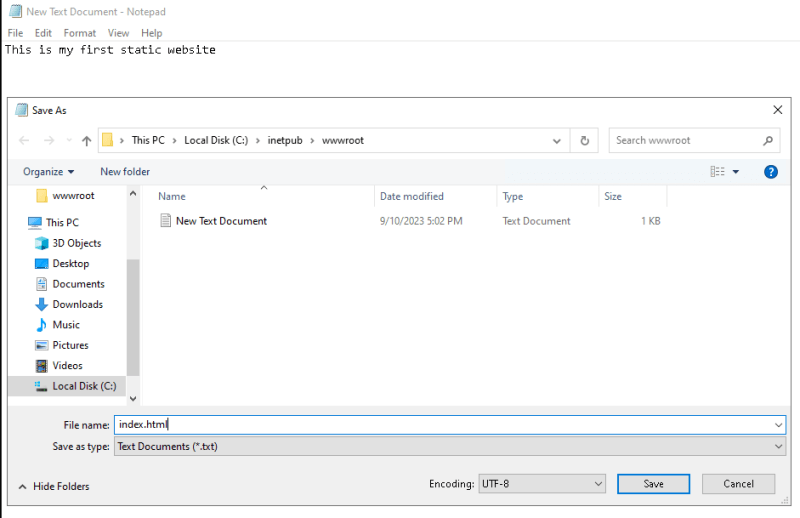
- Create a new text document and write, “This is my first static webpage.”
- Save it as “index.html“.
Step 7: Testing Your Static Website
- Copy the “public IPv4 address” and paste it into a new tab in your browser.
- The static webpage has been loaded successfully and can see, “This is my first static webpage.”
Congratulations! You’ve successfully launched a Windows EC2 instance on AWS. You can now customize and use it for various purposes, including hosting a static webpage.
https://academy.srtechops.com/wp-content/uploads/2025/01/Remainder-App-Technology-Logo.mp4
Devops Multi cloud Training
Choose the training style that fits your schedule — Self-Paced or Live Interactive Sessions. Both include hands-on projects, expert support, and lifetime access.
| Feature | Self-Paced Training | Live Training |
|---|---|---|
| 🎯 Mode | 🎥Pre-Recorded Session | 🧑🏫Live Class + Recordings |
| 💼 Projects | 🕒 Weekend Real-Time Projects | 📅 Weekdays + Weekend Real-Time Projects |
| ❓ Doubt Clearing | 📞 Weekend Live Support Session | 🧠 Anytime Doubt Clearing Session |
| 👥 Career Support & Mentorship | ❌ No | ✅ Yes |
| 🎓 Global Certification Training | ❌ No | ✅ Yes |
| 🔑 Access | ♾️ Lifetime Access | ♾️ Lifetime Access |
| 💰 Fees | ₹4,999 (2 x ₹2,500) | ₹7,999 (2 x ₹4,000) |
| ℹ️ For More Info | Explore Self-Paced Training |
Explore Live Training |